NPCI Aadhaar Seeding is the process of linking your Aadhaar number with your bank account in the NPCI Mapper. This allows you to receive Direct Benefit Transfer (DBT) payments such as LPG subsidies, pensions, scholarships, and other government benefits directly into your bank account.
Aadhaar Seeding Process
Step 1: Link Aadhaar with Bank Account
Submit a copy of your Aadhaar card to your bank through:
- Bank branch
- Internet banking
- Mobile banking app
Step 2: Bank Verification
The bank verifies your Aadhaar details and bank account information.
Step 3: Customer Consent
Submit the Aadhaar Seeding/NPCI Mapping consent form provided by the bank.
Step 4: NPCI Mapping
After verification, the bank updates your Aadhaar details in the NPCI Mapper.
Step 5: Confirmation
You will receive an SMS or notification confirming successful Aadhaar seeding.
Result
Your bank account becomes eligible to receive DBT payments and government scheme benefits.
Aadhaar De-seeding Process
Step 1: Submit De-seeding Request
Visit your bank branch and request an Aadhaar de-seeding form.
Step 2: Fill the Form
Provide:
- Account Number
- Aadhaar Number
- Mobile Number
- Reason for De-seeding
Step 3: Identity Verification
The bank verifies your identity and account details.
Step 4: Remove NPCI Mapping
The bank sends a request to NPCI to remove the Aadhaar mapping from the selected bank account.
Step 5: Confirmation
Once processed, you will receive confirmation through SMS or email.
Result
The bank account will no longer receive Aadhaar-based DBT payments through NPCI.
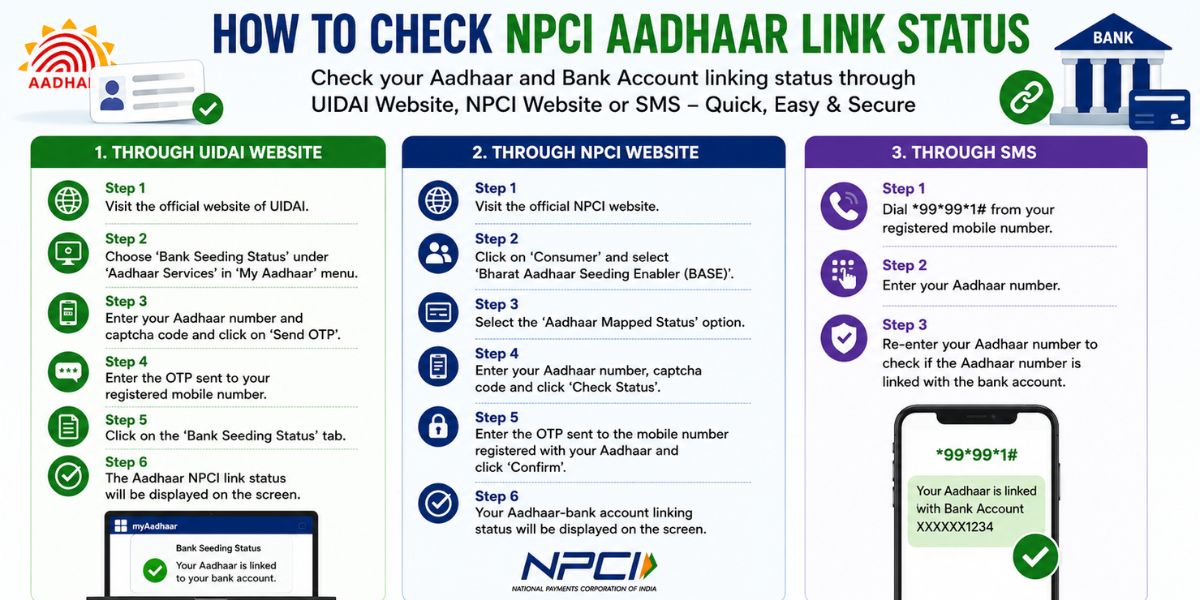
How to Check the Status of your NPCI Aadhaar Linking to your Bank Account?
You can check whether your Aadhaar is linked and mapped with your bank account through the following methods:
1. Through the UIDAI Website
Step 1: Visit the official UIDAI website.
Step 2: Go to My Aadhaar and select Bank Seeding Status under Aadhaar Services.
Step 3: Enter your Aadhaar number and captcha code, then click Send OTP.
Step 4: Enter the OTP received on your Aadhaar-registered mobile number.
Step 5: Click on Bank Seeding Status.
Step 6: Your Aadhaar-NPCI linking status will be displayed on the screen.
2. Through the NPCI Website
Step 1: Visit the official NPCI website.
Step 2: Click on Consumer and select Bharat Aadhaar Seeding Enabler (BASE).
Step 3: Choose Aadhaar Mapped Status.
Step 4: Enter your Aadhaar number and captcha code, then click Check Status.
Step 5: Enter the OTP sent to your registered mobile number and click Confirm.
Step 6: Your Aadhaar-bank account mapping status will appear on the screen.
3. Through SMS
Step 1: Dial *99*99*1# from your registered mobile number.
Step 2: Enter your Aadhaar number when prompted.
Step 3: Re-enter your Aadhaar number for verification.
Step 4: The system will display whether your Aadhaar is linked to your bank account.
Benefits of NPCI Aadhaar Linking
- It facilitates convenient DBT (direct benefit transfers) of government scheme benefits.
- It enhances the security of financial transactions and verifies their legitimacy.
- Receipts and transactions can be easily tracked through the NPCI mapper, thus facilitating transparency.
- It promotes financial inclusion by providing an efficient and secure platform for digital transactions.
How to Apply
| Apply Link – | Click Here |
| For Regular Updates Join our WhatsApp – | Click Here |
| For Regular Updates Join our Telegram – | Click Here |
Important Points
- One Aadhaar number can be linked to multiple bank accounts.
- Only one bank account can be active in the NPCI Mapper for receiving DBT benefits at a time.
- Aadhaar seeding and de-seeding are performed by the bank after customer consent.
- NPCI mapping updates usually take 2–7 working days.
- Always verify your NPCI Aadhaar status after submitting a seeding or de-seeding request.
Read Also:- HclTech Recruitment Drive: Hiring Support Analyst – Apply Now